

Step 1: Navigate to the Liquidity page
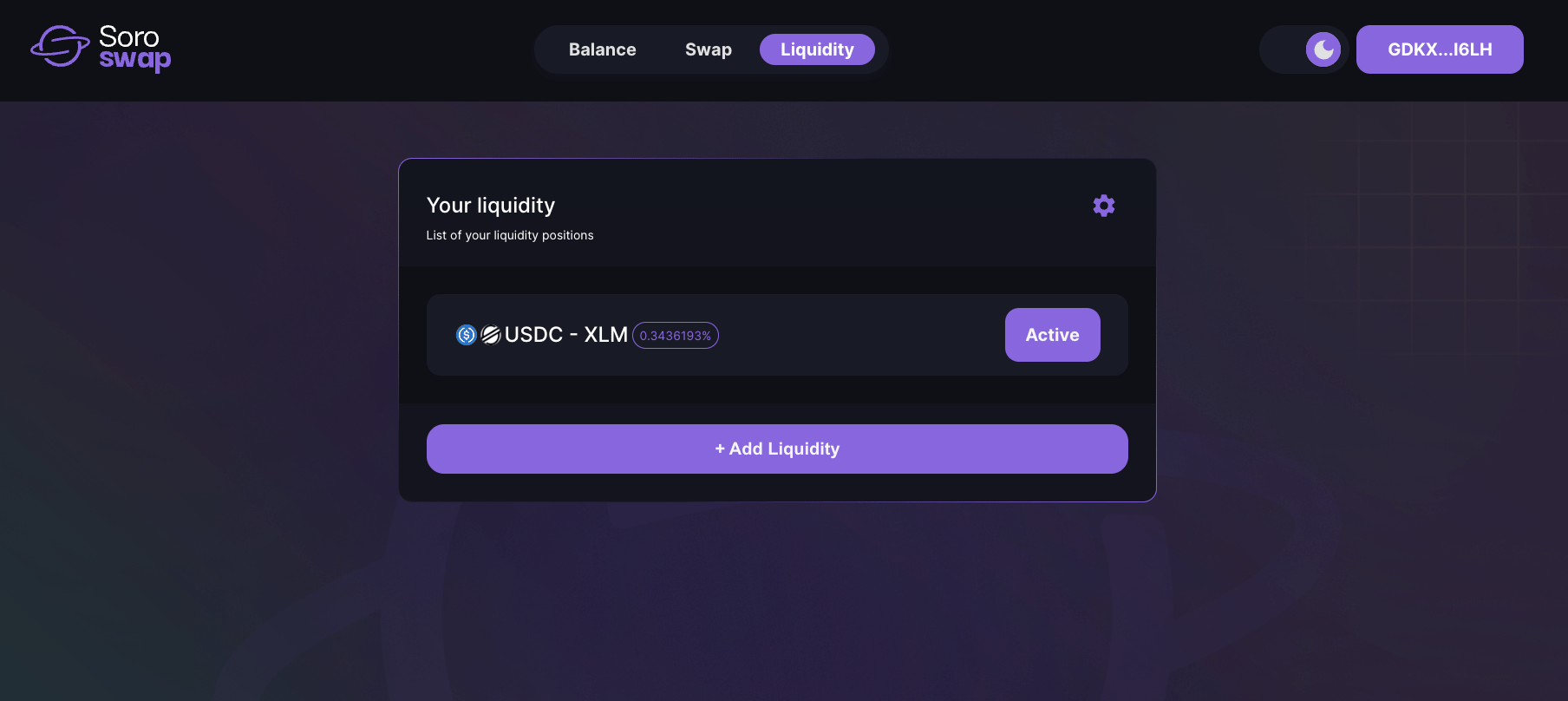
- Go to the Soroswap app and click on the “Liquidity” tab in the navigation menu.
Step 2: Select the liquidity position
- Find the liquidity position from which you want to remove liquidity.
- Click on the liquidity position to view its details.
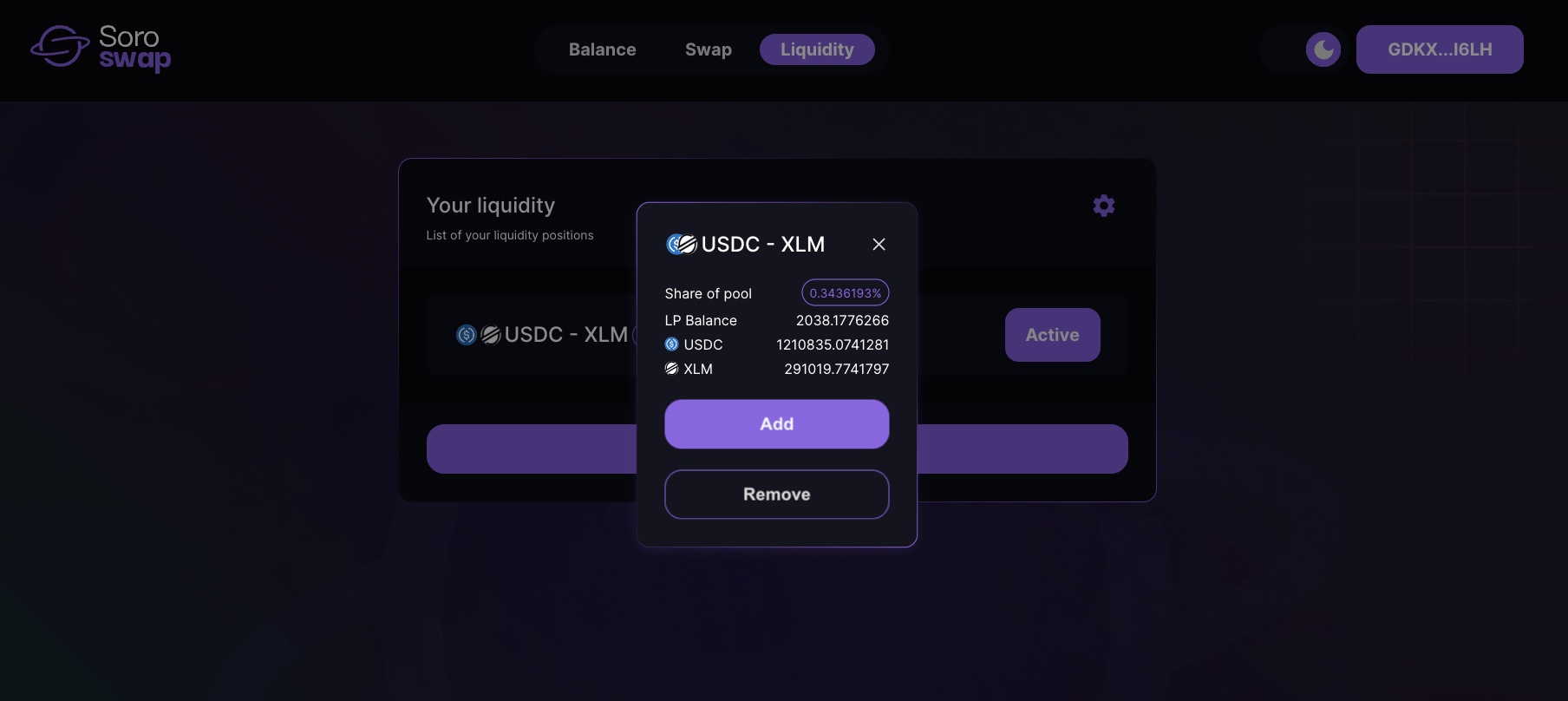
- Click the “Remove” button to proceed to the remove liquidity page.
Step 3: Remove liquidity
- In the “Remove Liquidity” section, use the slider or enter the amount of liquidity you would like to remove.
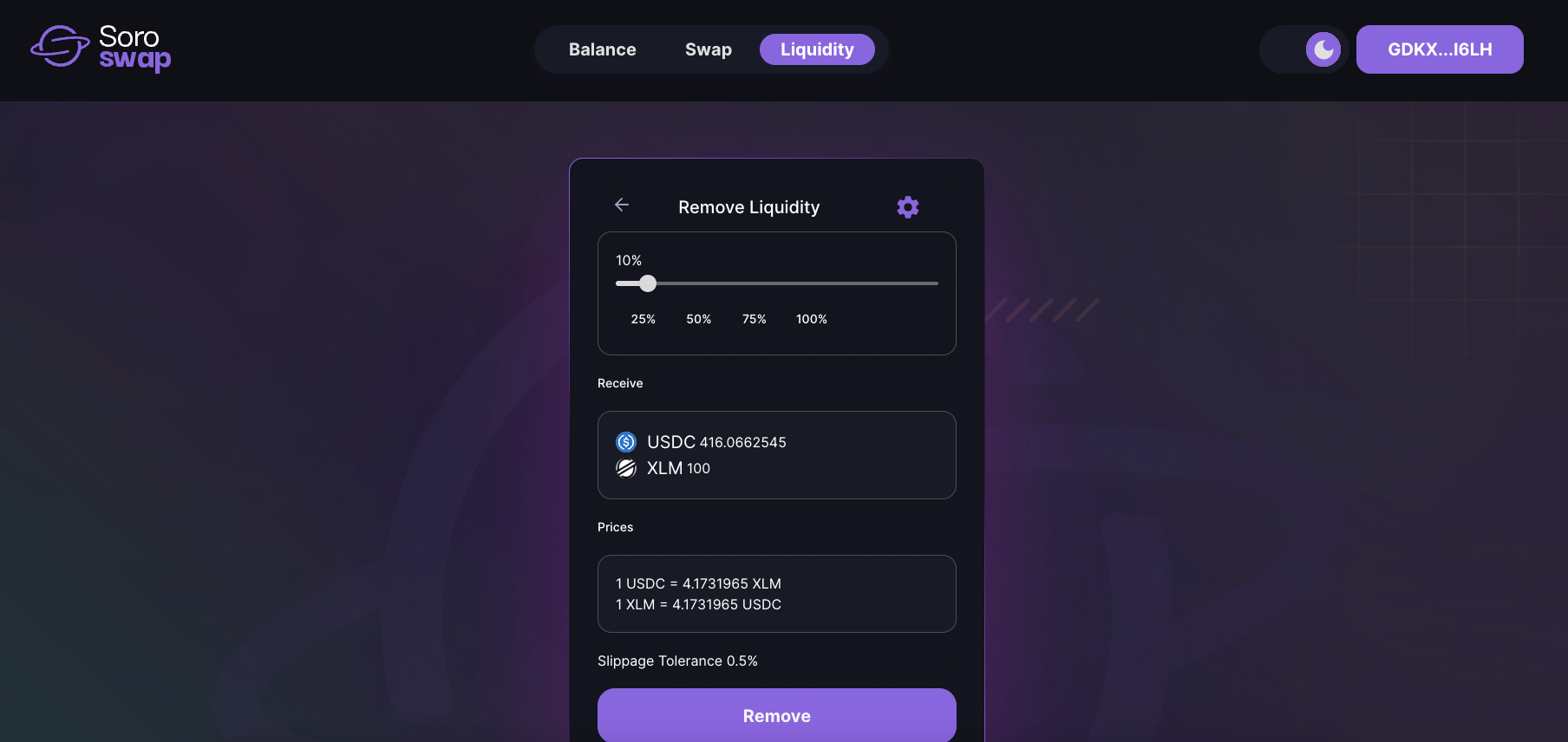
- Click the “Remove” button.
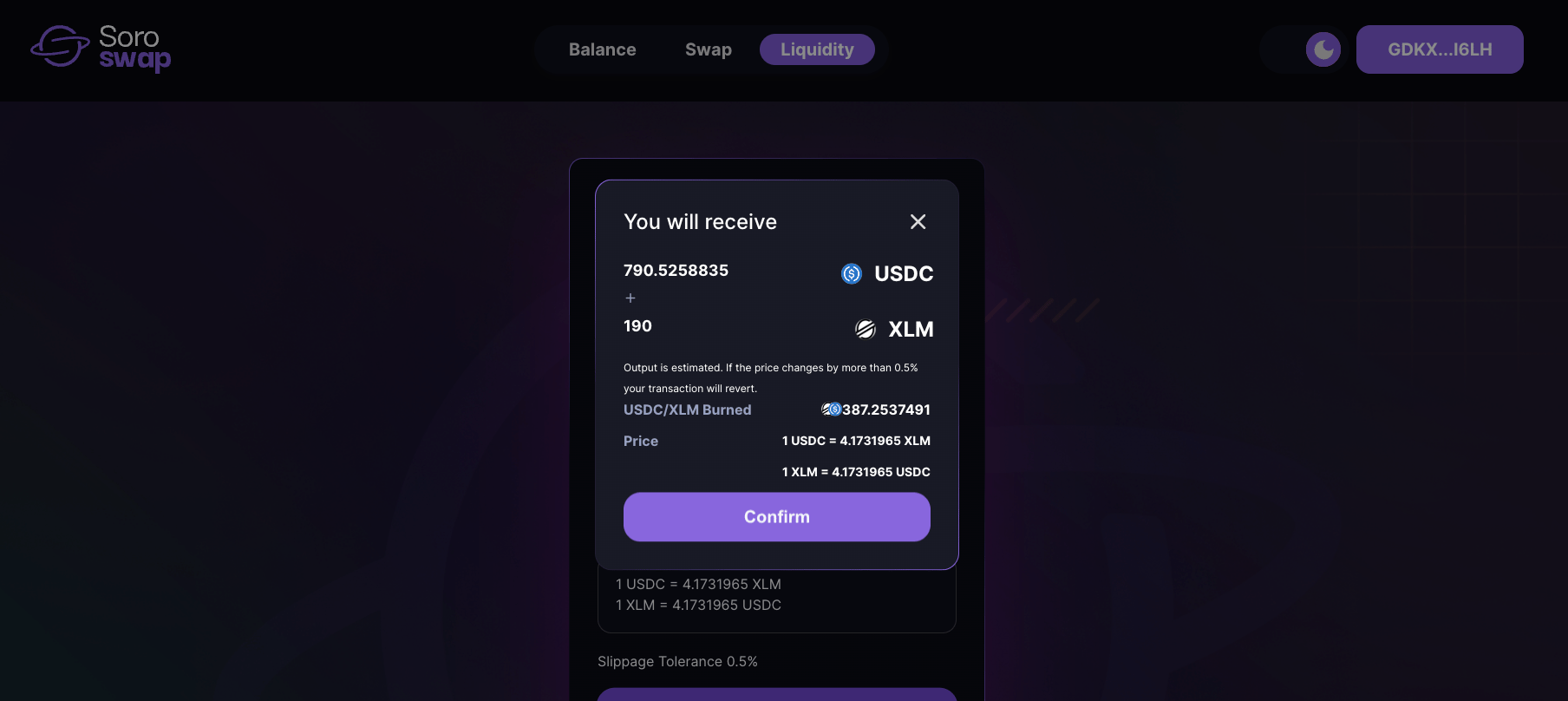
- Review the details of the removal, including the amount of tokens you will receive.
- If everything looks correct, click the “Confirm” button.
Step 4: Confirm the transaction
- Your Freighter wallet will open, displaying the transaction details.
- Review the transaction information and click “Approve” to confirm the removal.
- Wait for the transaction to be confirmed on the blockchain.
Step 5: View the transaction details
- Once the transaction is confirmed, you will see a success message indicating that the liquidity removal was completed.
- You can also view the transaction details with the transaction hash or by clicking “View on explorer”.